Rubrics
Creating a rubric
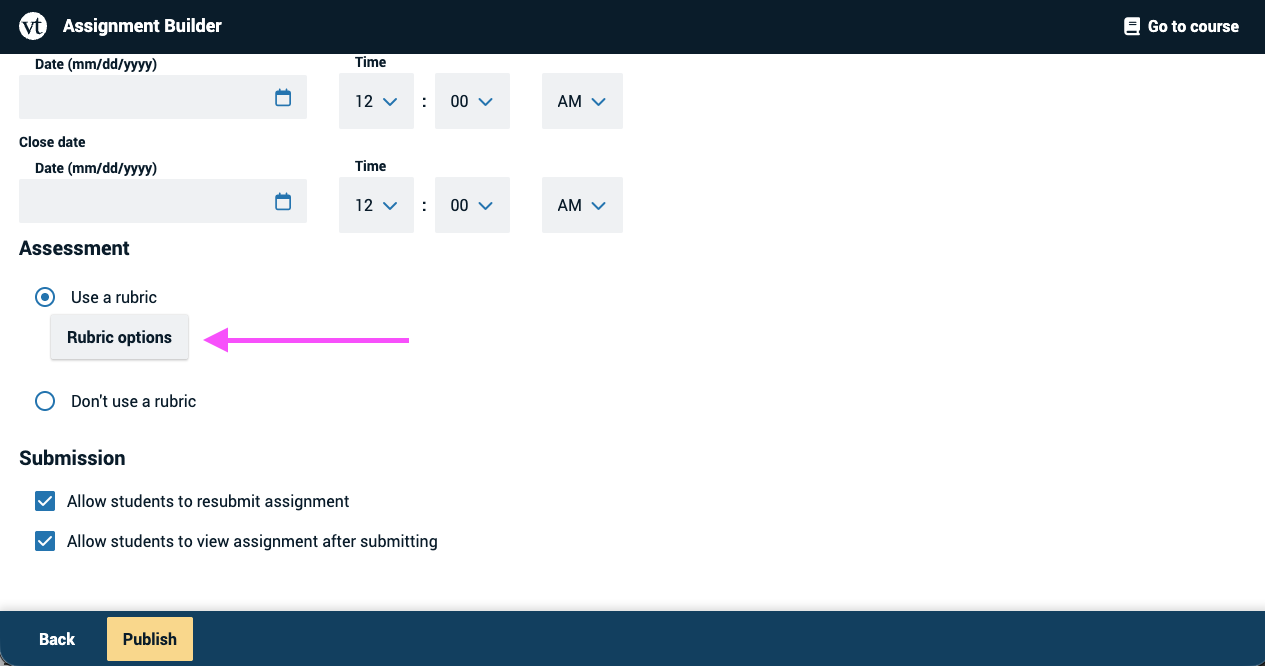
After you’ve selected “Use a rubric” in the Assignment Builder, click on “Rubric options” to open the rubric builder.
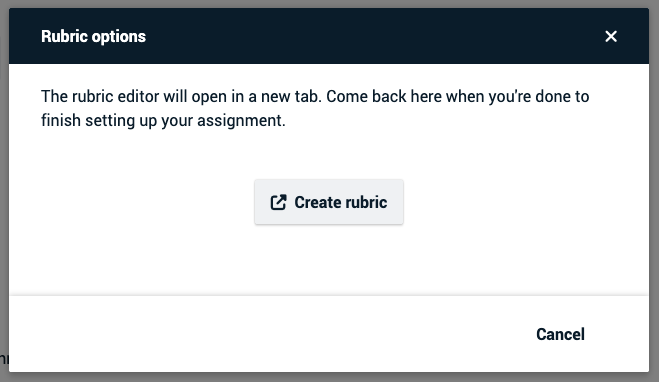
In the dialog that opens, click on “Create rubric.” The rubric builder will open in a new browser tab.
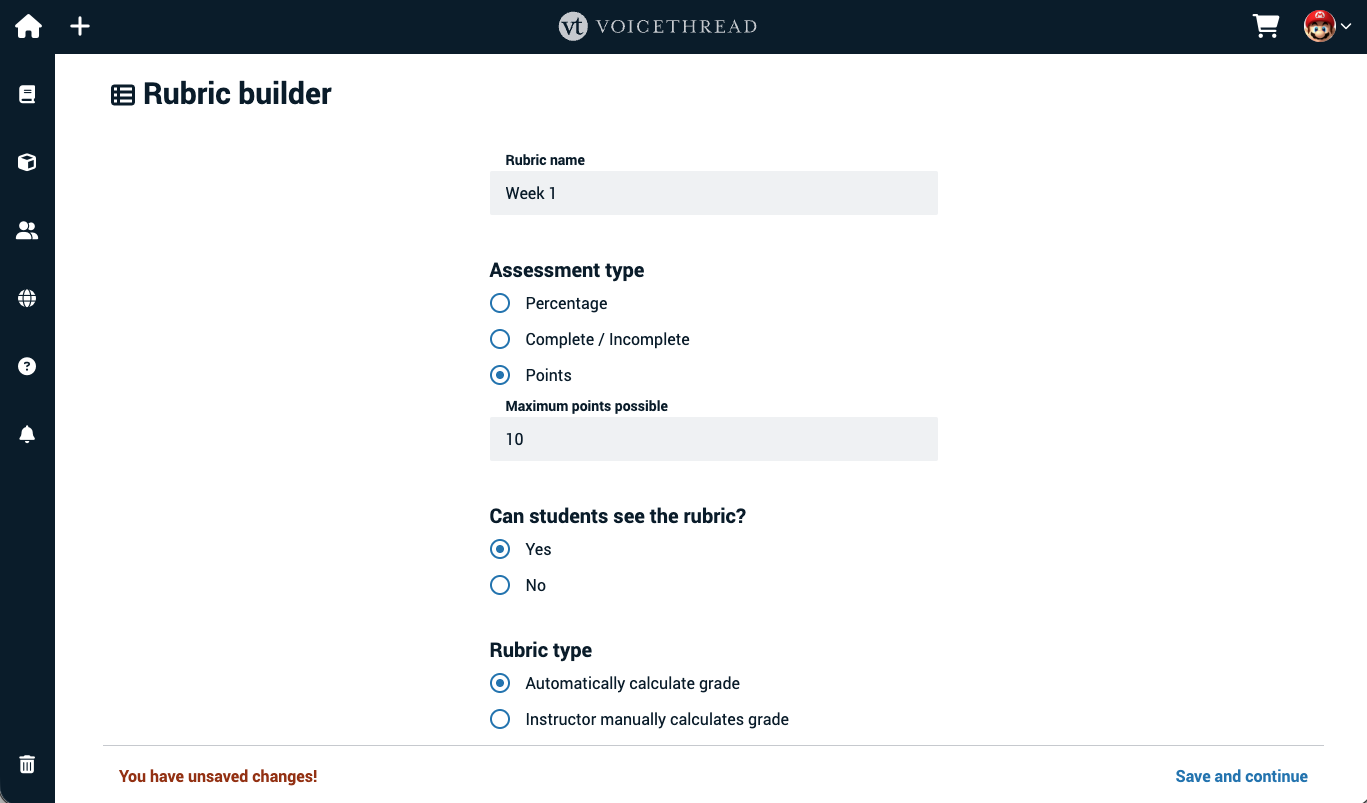
Start by selecting the desired settings for your new rubric:
- Give the rubric a title. It’s a good idea to have the rubric title match the assignment title so it’s easier to re-use later if you choose.
- Choose how you would like the final grade to be calculated
- Decide whether students can see the rubric once you’ve graded their submissions.
- Decide whether you want the points for the filled out rubric to be calculated automatically or whether you want to add up the points and enter the final grade manually.
Once you’ve made these selections, click “Save and continue” at the bottom.
Now you can build the actual rubric. You’ll start with one row and three columns, and you can add as many rows and columns as you need.
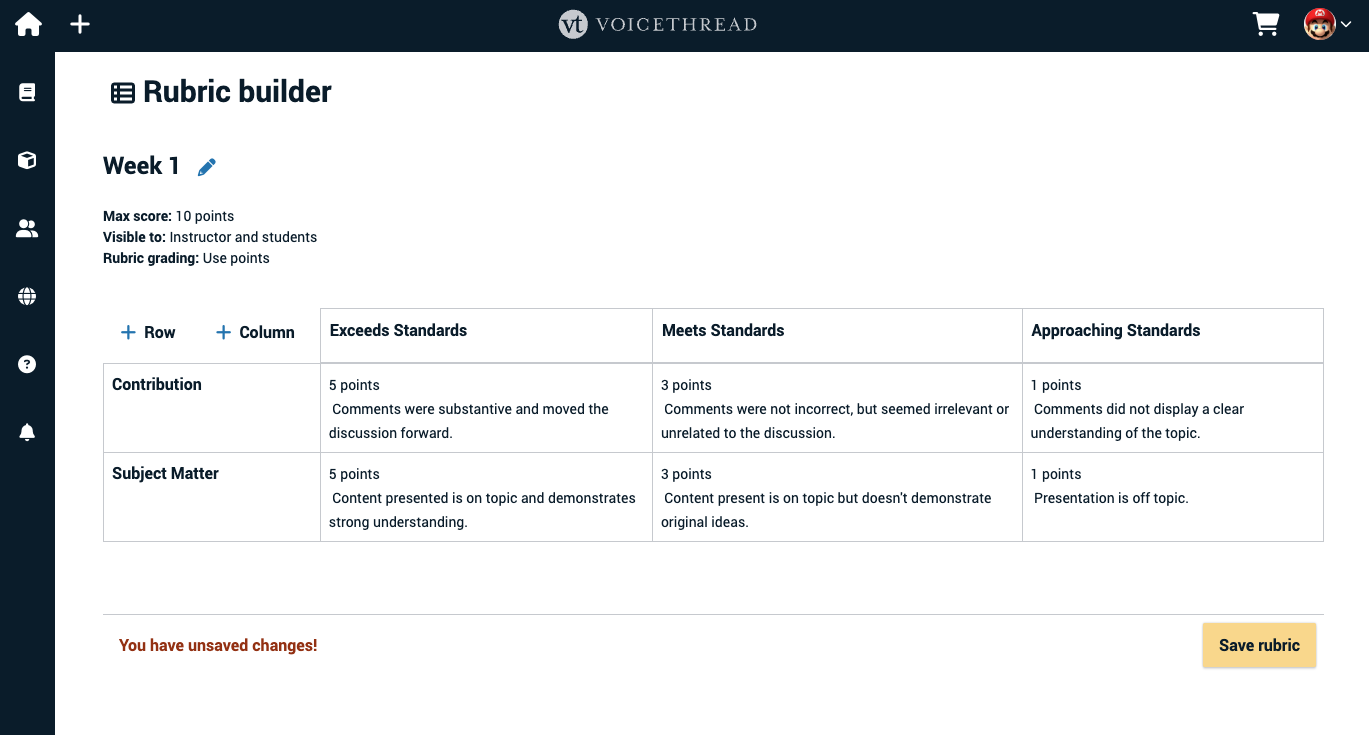
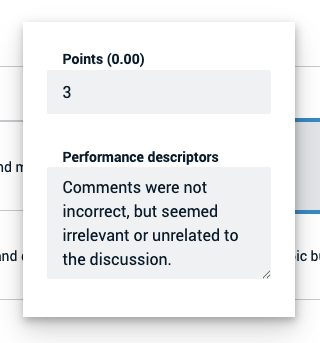
To edit any cell’s contents and set a point value, just click on that cell and then fill out the information in the window that pops up.
Once you’re done making edits, click “Save rubric” at the bottom, and then close the browser tab to return to the Assignment Builder.
Grading using a rubric
When you click on a student’s name in the grading panel, the rubric will appear beneath the student’s submission automatically. Just click on the cell with the score the student earned, and it will be highlighted. If you’ve chosen to have the points tallied automatically, then the point value will appear automatically on the right side of the page beneath the student’s name. If you’ve chosen not to have points tallied automatically, you’ll need to enter a grade on the right manually.
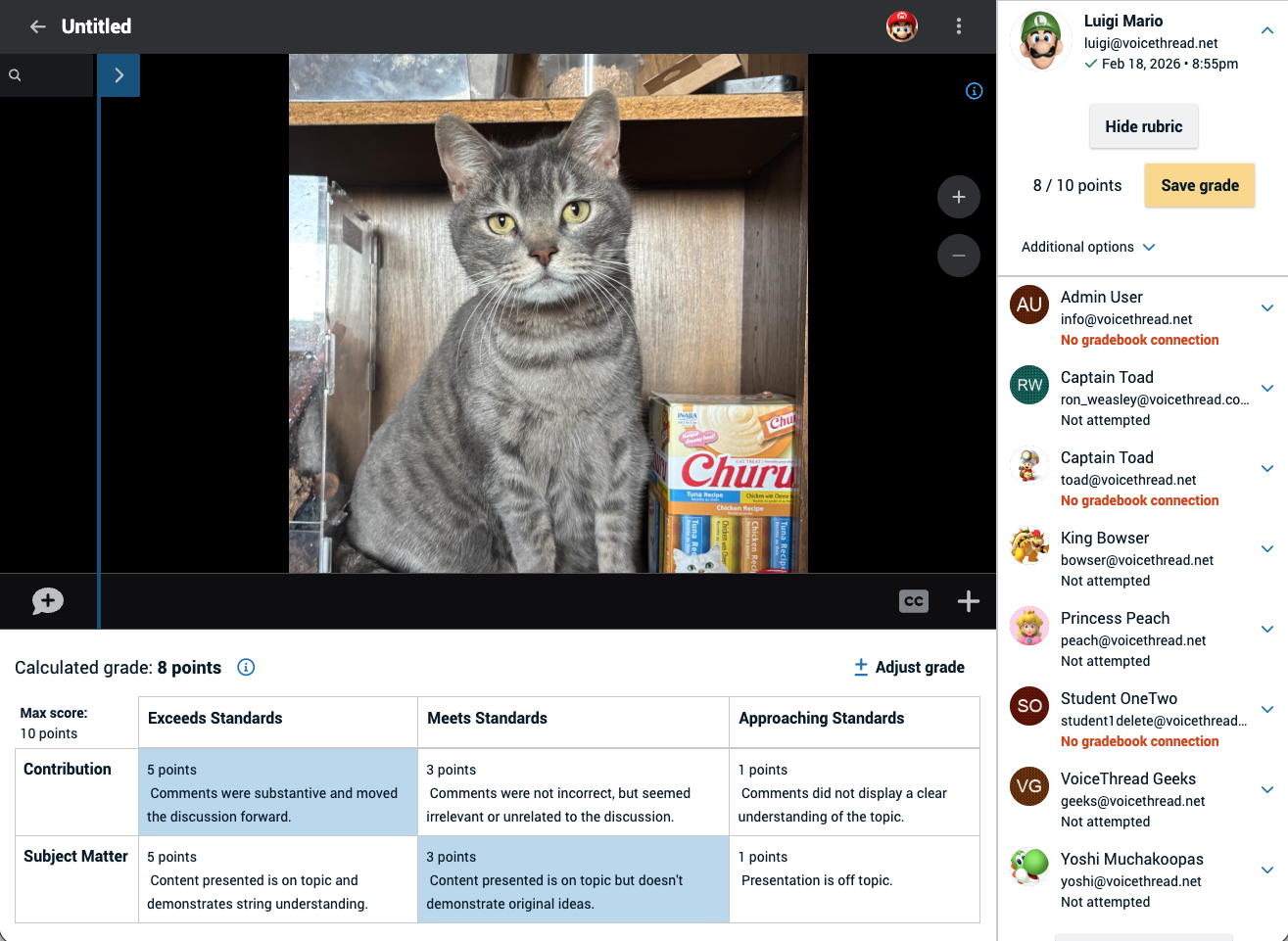
Be sure to click “Save grade” on the right once you’ve fully evaluated the student. As soon as the grade is saved, the student will be able to see the full rubric and the evaluation they received.